How to Fax a PDF Without Printing It
Save and inspect your completed PDF, confirm the recipient’s fax number, upload the file, and keep the delivery receipt. You can prepare the document without printing it.
LowFax.com · How to Fax a PDF Without Printing It
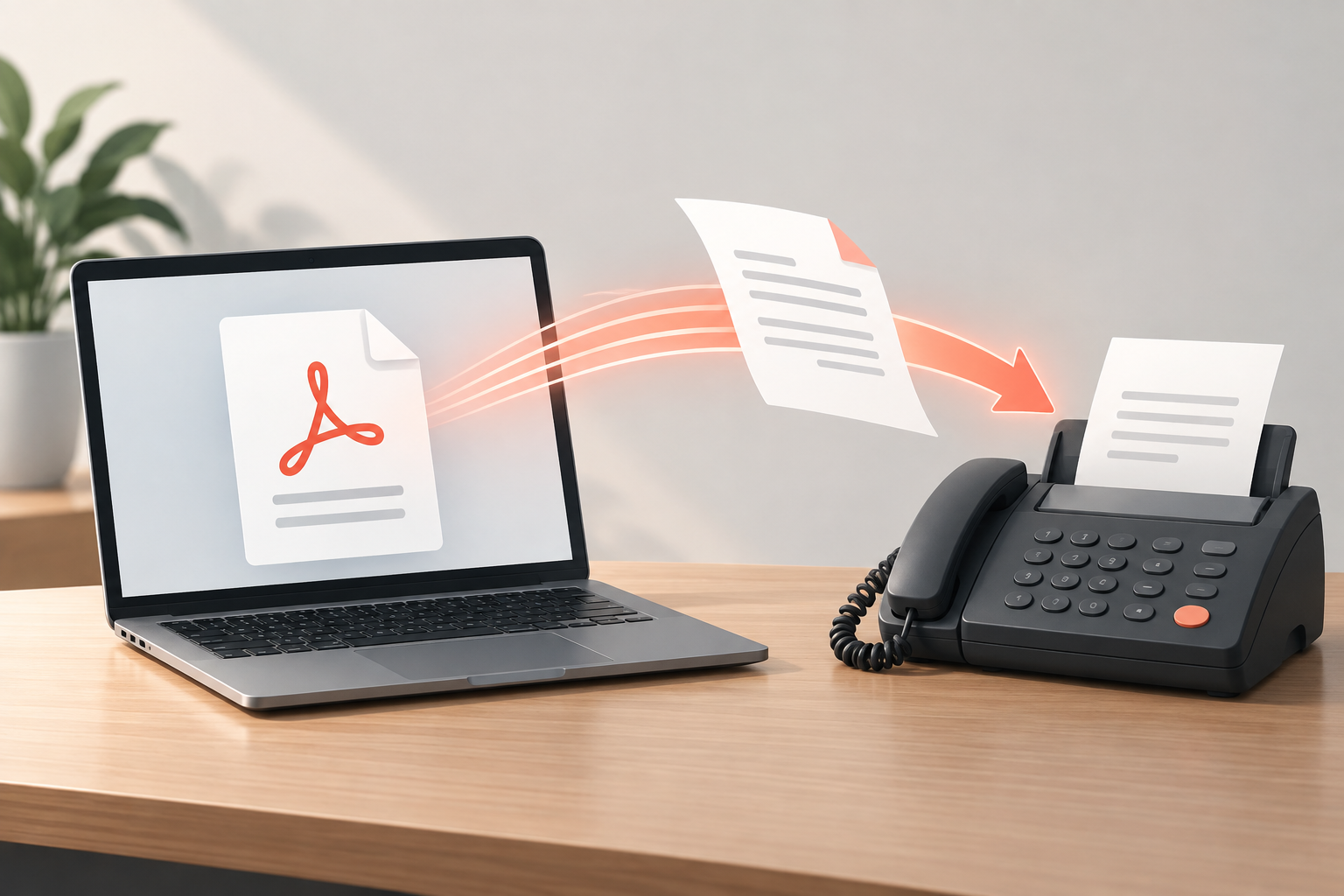
If your document is already a PDF, you can send it through an online fax service without printing it first. You upload the file, supply the recipient's fax number, and submit the transmission. The recipient can receive it through their fax system.
This is useful when someone asks for a signed agreement, completed form, or document packet by fax and you already have the finished file on your device.
How do you save a completed PDF before faxing?
Adobe’s instructions for filling and signing PDF forms describe adding text and signatures, then saving the completed document. One useful instruction is:
“Save the completed form” — Adobe.
For a fax submission, that saved file is the one to reopen and inspect before uploading. Adobe’s separate sending options should not be confused with fax delivery. Check that every answer and signature appears in the saved PDF, that no required page is missing, and that the receiving office accepts the way you signed it. This small check can prevent uploading the original blank form instead of your completed copy.
Check your PDF before uploading
Open the exact file you plan to send. Check every page, especially pages with signatures, handwritten entries, or small numbers.
Make sure the final version contains the completed fields. If you filled out an interactive form, save it and reopen it to check that the entries remain visible. Check that a signature has actually been saved into the file.
Put pages in the order the recipient requests. If several files belong together, combining them into one PDF can make that order easier to review. Use a tool appropriate for the document's sensitivity; avoid uploading private paperwork to an unfamiliar conversion website.
Send your PDF in five steps
- Open LowFax.com in your browser and go to the send form.
- Enter your contact details and the recipient's information.
- Select the destination country and enter the confirmed fax number.
- Upload the PDF and review the document details and price.
- Complete payment and keep the delivery confirmation when it arrives.
You can follow the same basic process on a computer or phone. If the PDF is attached to an email, save it to your device first so you can select it when uploading.
What if the PDF is locked or unreadable?
If a PDF requires a password, prepare an accessible copy that you are authorized to send. Check that it opens properly before uploading it. Keep the original separately.
If the PDF contains blurry scans, exporting it again will not restore missing detail. Rescan the original pages or obtain a clearer file. Pay particular attention to faint handwriting and cropped page edges.
Do not depend on color alone to convey instructions. The recipient's fax equipment may produce a monochrome version, so labels and text should carry the meaning.
How do you know it arrived?
A successful transmission notice confirms delivery to the destination fax system. It does not establish that a particular employee has read or accepted your paperwork.
For an important submission, keep a copy of the file and the delivery receipt. Follow the recipient's instructions for checking processing status.
Why sending the original PDF is useful
An existing PDF lets you start with the finished document rather than a photograph of a printout. You can inspect its page order and make sure the version you are sending is the version you intended.
Printing and scanning introduce additional opportunities for missing pages, shadows, tilted text, or a faint signature. When the recipient accepts your completed PDF by fax, those extra steps usually add work without improving the document.
A PDF is a container, however, not a guarantee of quality. It may hold clear digital text, a sharp scan, or a poorly photographed page. Inspect what is inside the file. The filename and extension alone cannot tell you whether the information is readable.
Find the exact file you want to send
If someone emailed the PDF, download the attachment and open that saved copy. Avoid selecting an older version from your downloads folder simply because its name looks familiar.
Give the final file a descriptive name that helps you distinguish it from drafts. For example, a name such as Signed-Agreement-Final.pdf is easier to identify than a series of files named document, document-copy, and document-new. Avoid putting unnecessary private identifiers in the filename.
On a phone, locate the saved file before opening the send form. This makes the upload step easier because you know which folder or storage location contains it. If the attachment is stored in a cloud service, make sure you can access the actual file rather than only a sharing link.
Prepare forms so the entries remain visible
A fillable PDF can display information while you are editing it but still need saving before the entries are part of the finished file. After filling it out, save the document, close it, and reopen it to check the result.
Look at names, dates, selections, and signature fields. Long entries can be clipped inside a small field. Check whether the recipient requires a particular signature method before adding one; the ability to place a signature image in a PDF does not settle the recipient's acceptance rules.
If a form does not render consistently, an authorized PDF export or flattened copy may help preserve its visible appearance. Keep the original editable file separately. Do not flatten or change a document in a way that removes information the recipient requires, and do not assume LowFax.com provides a built-in form editor.
Put several documents into a clear order
Some submissions consist of a form, a supporting statement, and several attachments. Before combining them, read the recipient's instructions for the sequence.
Use a PDF tool you trust to assemble the packet. Start with the required primary document, then add the supporting pages in order. LowFax.com includes a cover page as the first page, and it adds to the total page count. Reopen the combined file and review it from beginning to end rather than relying only on the filenames you selected.
Check that page orientations are consistent enough to read. A landscape table may legitimately remain landscape, but a portrait scan rotated sideways should be corrected. Remove duplicate exports when they are accidental; keep duplicate copies if the recipient specifically asks for them.
A practical example: sending a signed agreement
Suppose an office asks you to fax an agreement you have already completed electronically. First, open the signed version and inspect the signature page. Then check whether exhibits or attachments are part of the agreement.
If the office supplied a reference number, include it where instructed. Confirm the fax number from the office's current communication, rather than using a number remembered from a different transaction.
Upload the complete file, review your contact details, and check the displayed charge. After transmission, keep the sent version with the delivery receipt. If the office later asks which pages you submitted, you will have a clear record of the exact packet.
This workflow also helps when a document goes through several revisions. Saving the sent file separately prevents confusion between the version that was transmitted and a version changed afterward.
Check readability before transmission
Zoom in on the smallest text and inspect any handwritten sections. Then view each page at a normal reading size. Both checks are useful: high zoom reveals missing detail, while a full-page view reveals clipped edges or an unexpectedly tiny scan.
If a scanned page is too dark, return to the original and make a better scan when possible. Aggressive image adjustments may erase faint marks. If a table is difficult to read, obtain a cleaner export instead of photographing a computer screen.
A screen screenshot of a PDF may contain only the part currently visible. Send the actual file whenever possible, so the full pages are included. Be especially careful with long forms that continue below the visible window.
Troubleshooting an upload problem
If the selected file will not upload, first confirm that it is a PDF and that you can open it locally. A renamed file is not necessarily converted: changing an image's extension to .pdf does not create a valid PDF.
Next, check for a password requirement or restrictions that prevent the sending service from reading it. Prepare an accessible copy only if you are authorized to do so. If you do not have permission or the needed password, obtain a sendable version from the document owner.
Review any file-size message the service displays. If you must reduce the file size, use settings that preserve small text and signatures. Reopen the resulting copy before uploading it. If the site reports a problem you cannot resolve, contact support with the error description rather than repeatedly paying for a new attempt.
Keep the number and recipient details separate
A fax number identifies the receiving fax endpoint. A recipient name helps the office route the paperwork internally. Both matter, but writing the correct person's name cannot repair an incorrect number.
Confirm the destination country and complete number. For a shared office, add the department or named contact in the recipient field or cover message. If the organization has different numbers for different types of submissions, use the one specified for your document.
Keep the subject brief and useful. The document itself should contain required identifiers, while the cover can provide the context needed to route it. Avoid disclosing unnecessary personal details merely to make the subject more specific.
People Also Asked
Can I fax a PDF from a phone? LowFax.com is a browser-based sending service. Select a PDF saved on your phone and upload it through LowFax.com; LowFax.com handles the fax transmission.
Do I have to print and sign it first? Follow the recipient's signature requirements. Some documents can be completed electronically; others need a handwritten signature. If you must sign on paper, scan the signed pages into a readable file afterward.
Can I send a file from email directly to a fax number? An ordinary email attachment does not reach a fax machine on its own. Email-to-fax requires a service that supports that workflow. Downloading the PDF and uploading it through a browser is a separate method.
Will the recipient get the exact colors I see? Do not rely on color reproduction through a fax workflow. Use readable text and clear labels so the meaning survives monochrome output.
What should I save afterward? Keep the exact PDF you submitted, the destination information, and the delivery notice. For time-sensitive paperwork, follow up using the receiving organization's instructions.
How LowFax.com counts and prices your fax
LowFax.com is a browser-based sending service. Your price is based on the actual number of pages in the fax, including the cover page that LowFax.com always includes. File size in bytes or megabytes does not determine the page count or price. A five-page document plus the cover page is a six-page fax, even if the PDF file is unusually small or large.
Each destination country has its own pricing. Any US dollar examples in this article apply only to US destinations; they should not be used to estimate the cost of sending to another country. Select the correct destination country in LowFax.com and check the price shown for your complete fax before paying.
Send the PDF you already have
Once the pages are complete and the number is confirmed, send your PDF with LowFax.com.
For other file types, see How to Fax a Document Online.